
Darkglass Suite
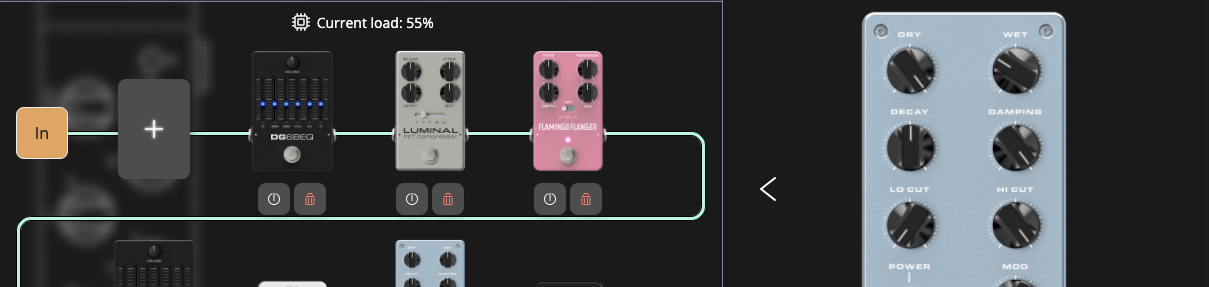
Free and feature-packed, combine the Darkglass Suite with your favorite Darkglass music gear to take full advantage of your music gear's potential!
Maximize Your Music Gear Potential
Darkglass Suite is free software suite that allows you to create and share presets, load impulse response based cabinet simulations, and configure your Darkglass amplifiers and pedals with a USB port or wireless connection*. It comes with hundreds of free and ready-to-use impulse responses captured by Darkglass artists and audio professionals, and also allows you to load your own impulse responses.
*Available features vary depending on the product.
-
Infinity Combos
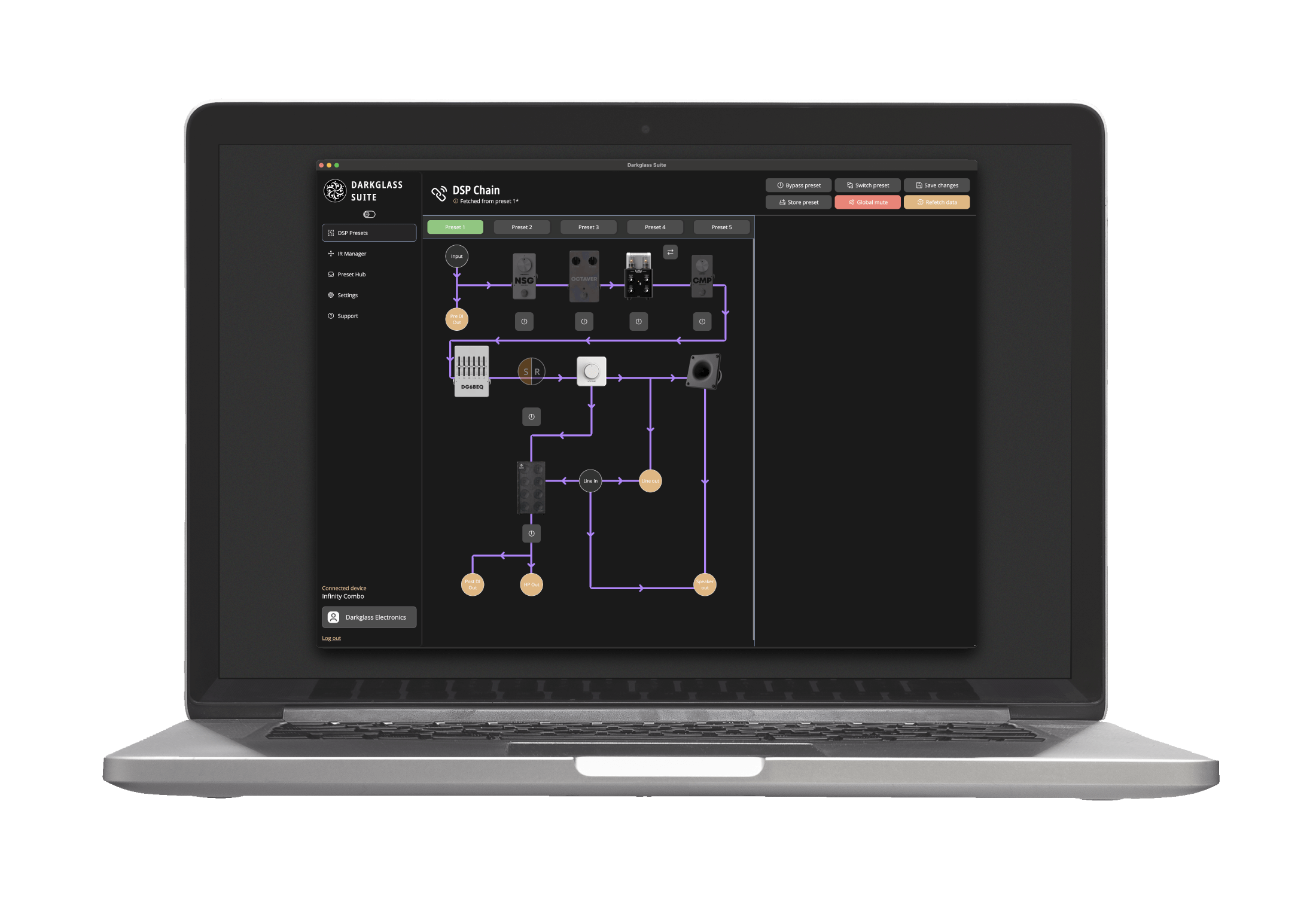
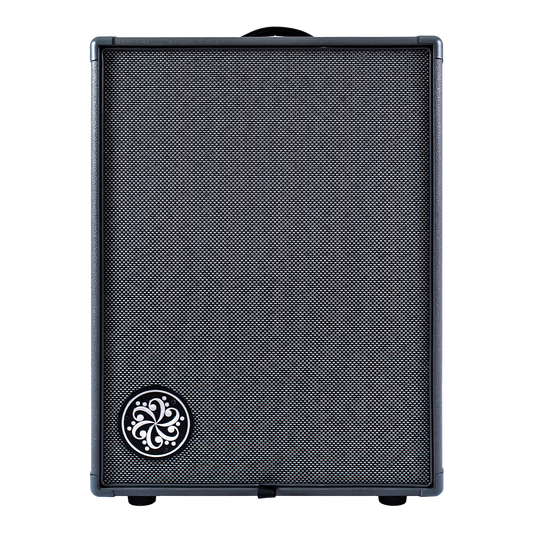
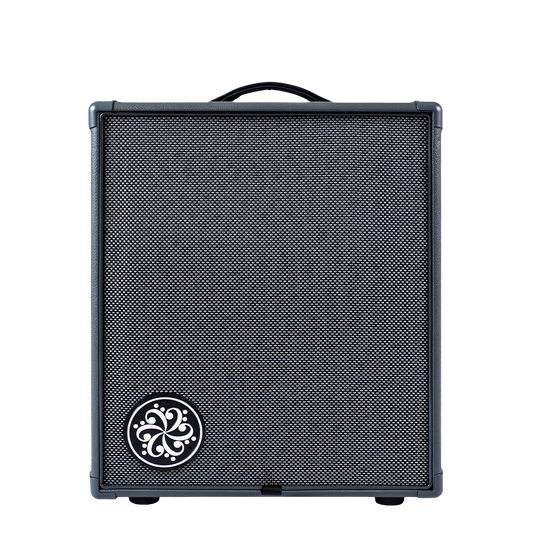
The Darkglass Suite unlocks the full potential of the Infinity Combo by providing an interface to interact with and modify the signal chain for each preset.
-
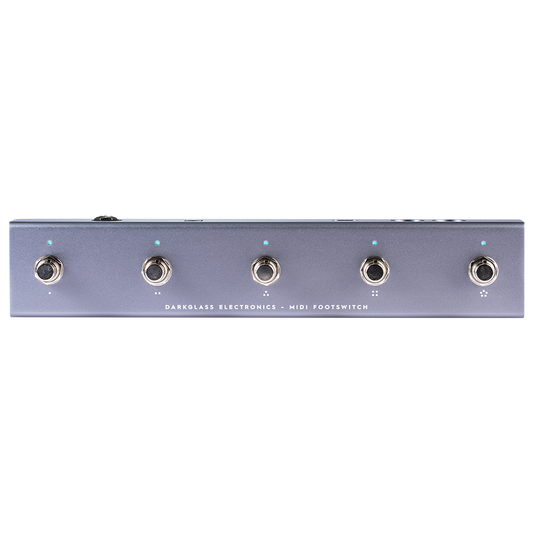
MIDI Footswitch
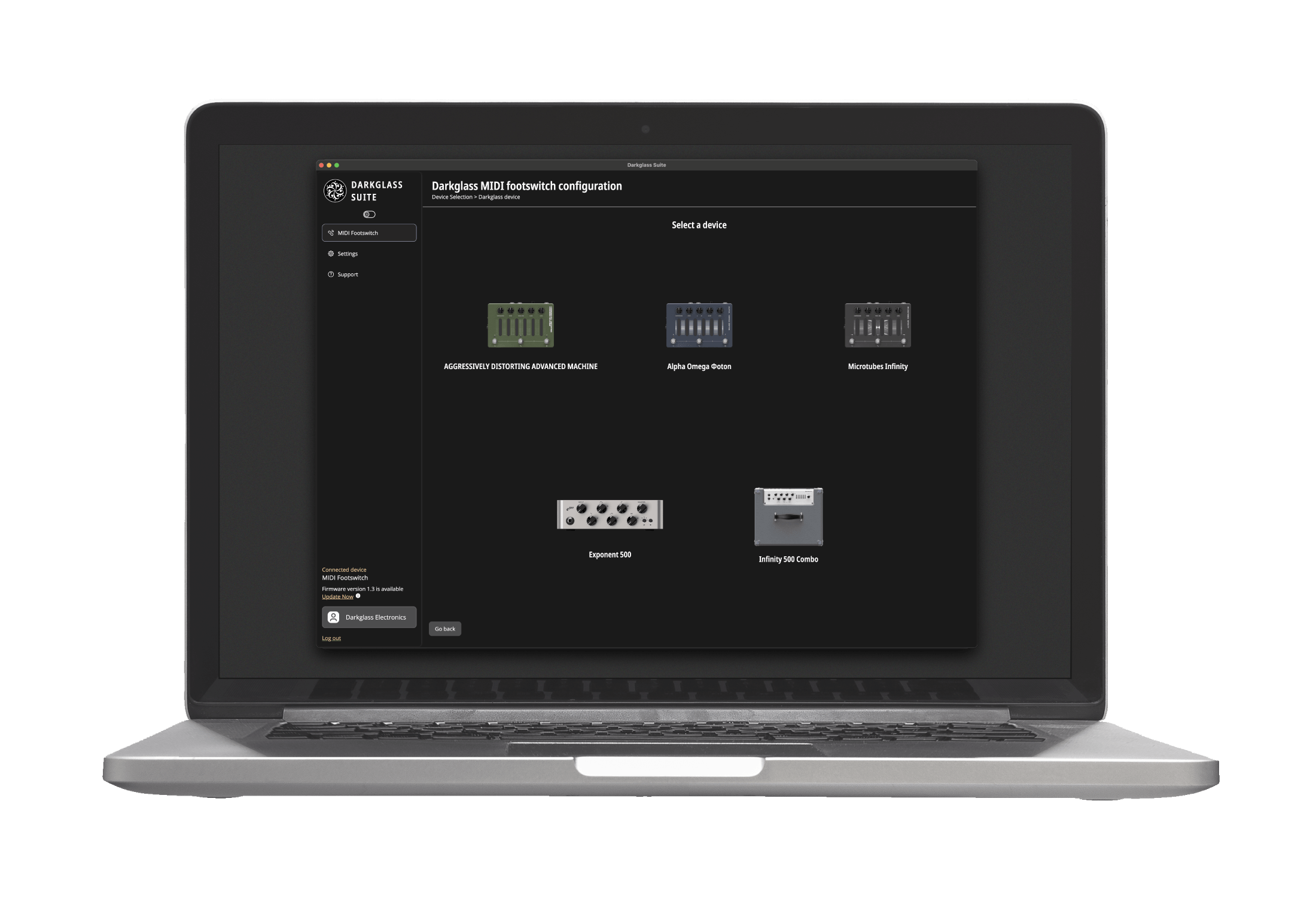
The Darkglass Suite maximizes the capabilities of the MIDI Footswitch, offering an interface to configure and interact with it for use with Darkglass Devices or as a generic MIDI device.
-
Exponent ⁵⁰⁰
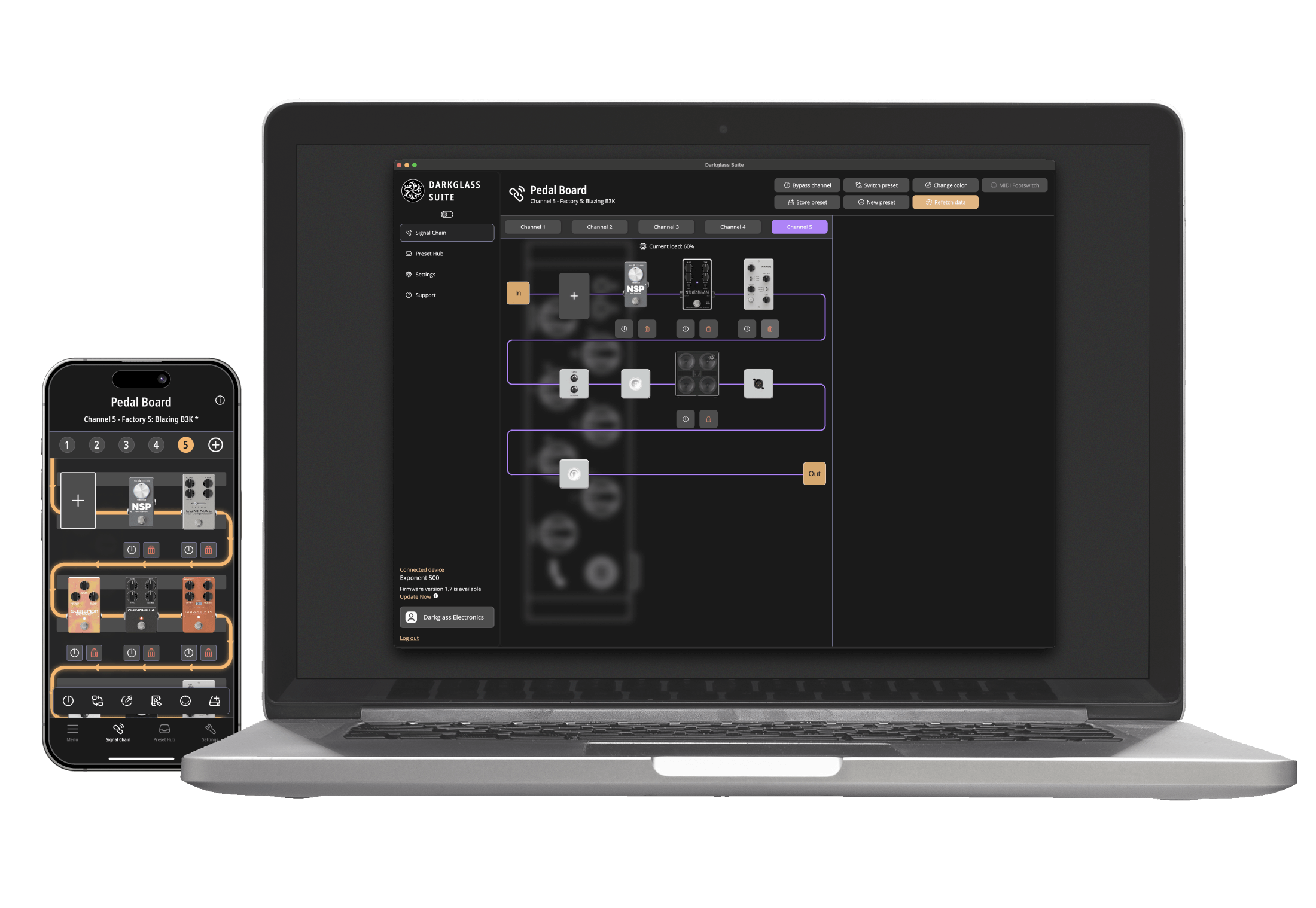
Darkglass Suite unlocks the full potential of Exponent⁵⁰⁰ by providing an interface to interact and modify the signal chain running on each preset. Use the iOS or Android versions of the Darkglass Suite to create, edit, share, and apply presets.
-
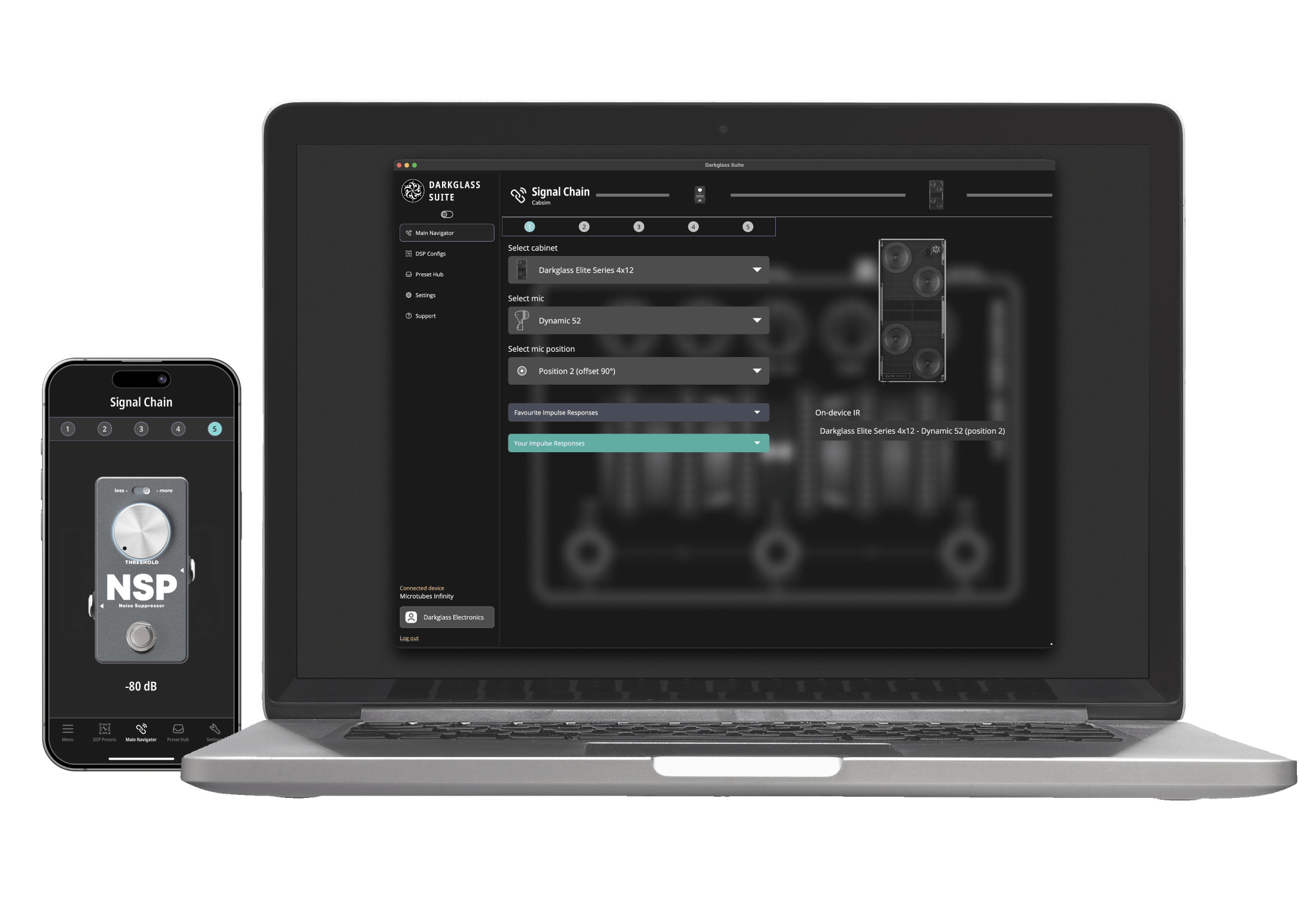
Programmable Line
Customize the settings of each preset to your liking. The signal chain options are available with the embedded noise gate, in addition with the use of the available IR’s from our library or your custom third party impulses to the available slots.
-
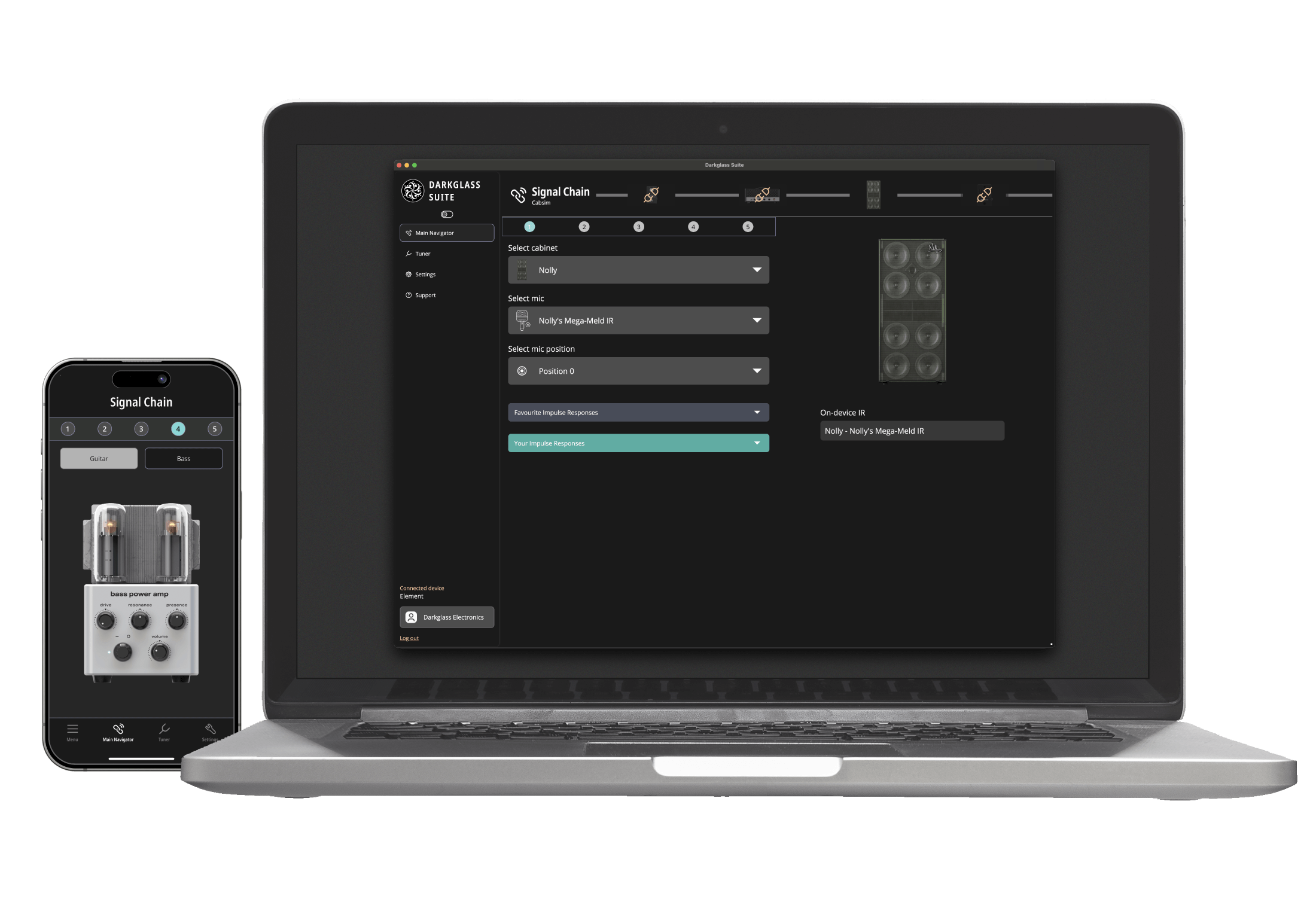
Element
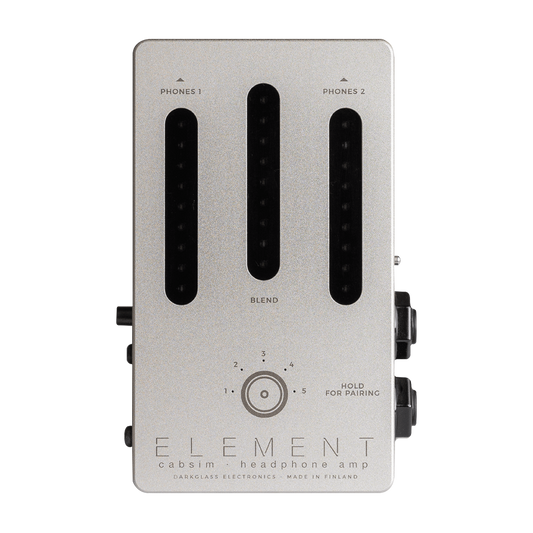
Select between two different types of graphic EQs, tube power amp simulations, and access to a growing library of high-quality IR cabinet simulations. The desktop version also enables firmware updates and loading your own 3rd party IR’s.
-
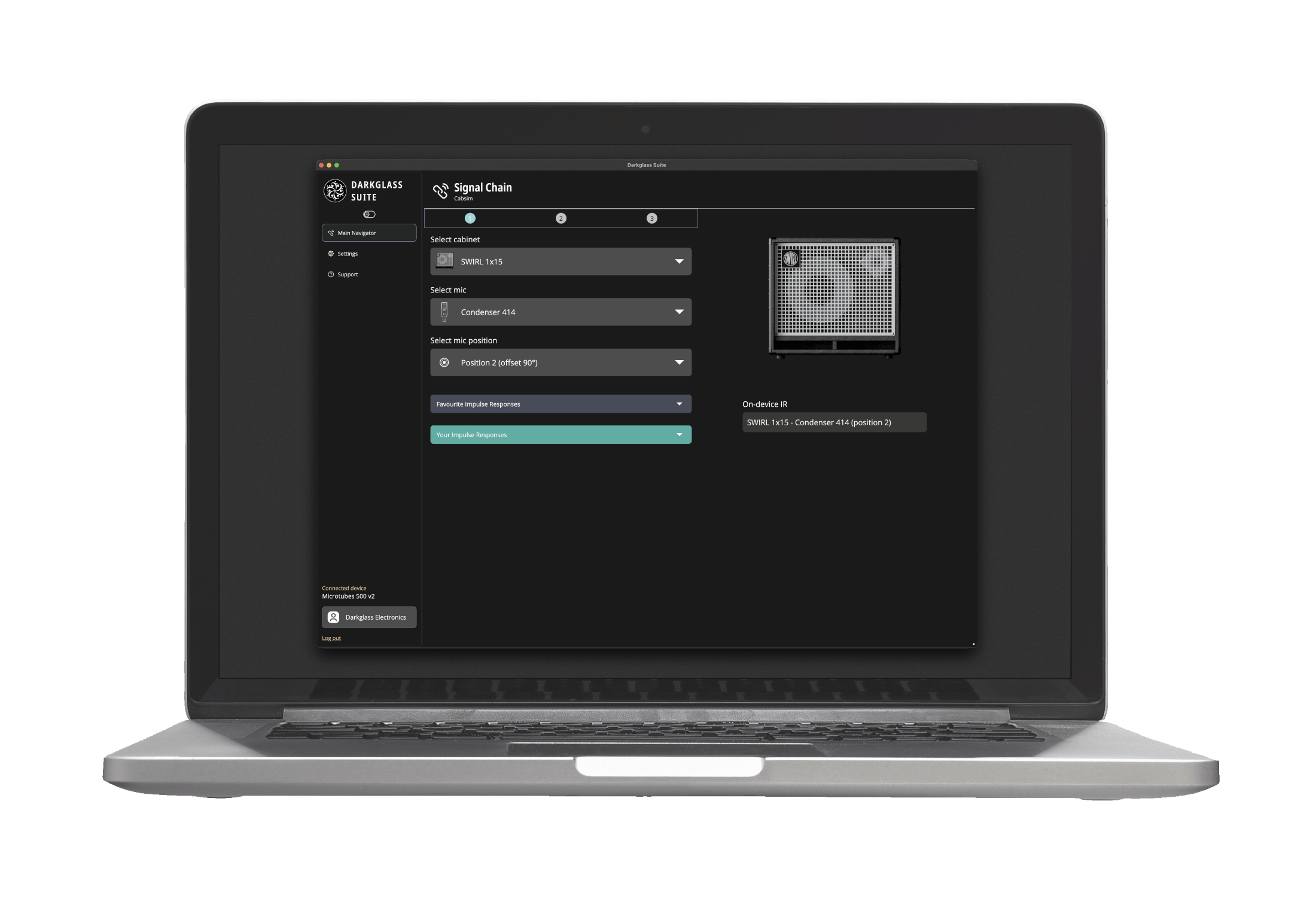
Amplifier Line
Using the desktop version allows you to select and use any of our available impulse responses from our provided library in addition to loading your own custom impulse responses. In addition, you can control the amplifier channel settings for the Super Intelligent Footswitch.
-
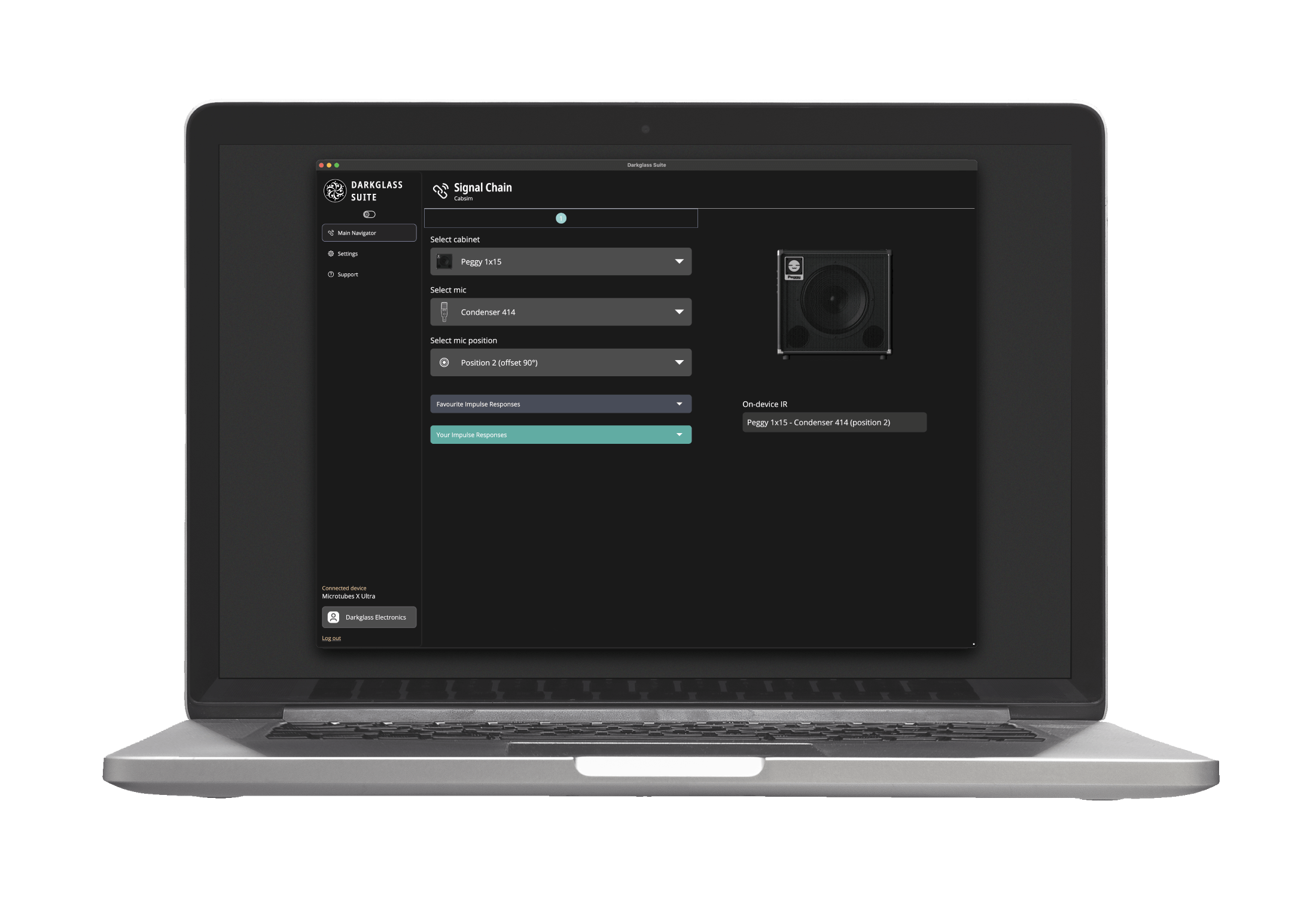
Ultra Line
Utilizing the desktop version of the Darkglass Suite allows you to load one of the available impulses responses of our library or add you custom / third party impulses to use with your pedal. In addition you can control the headphones level output.
-
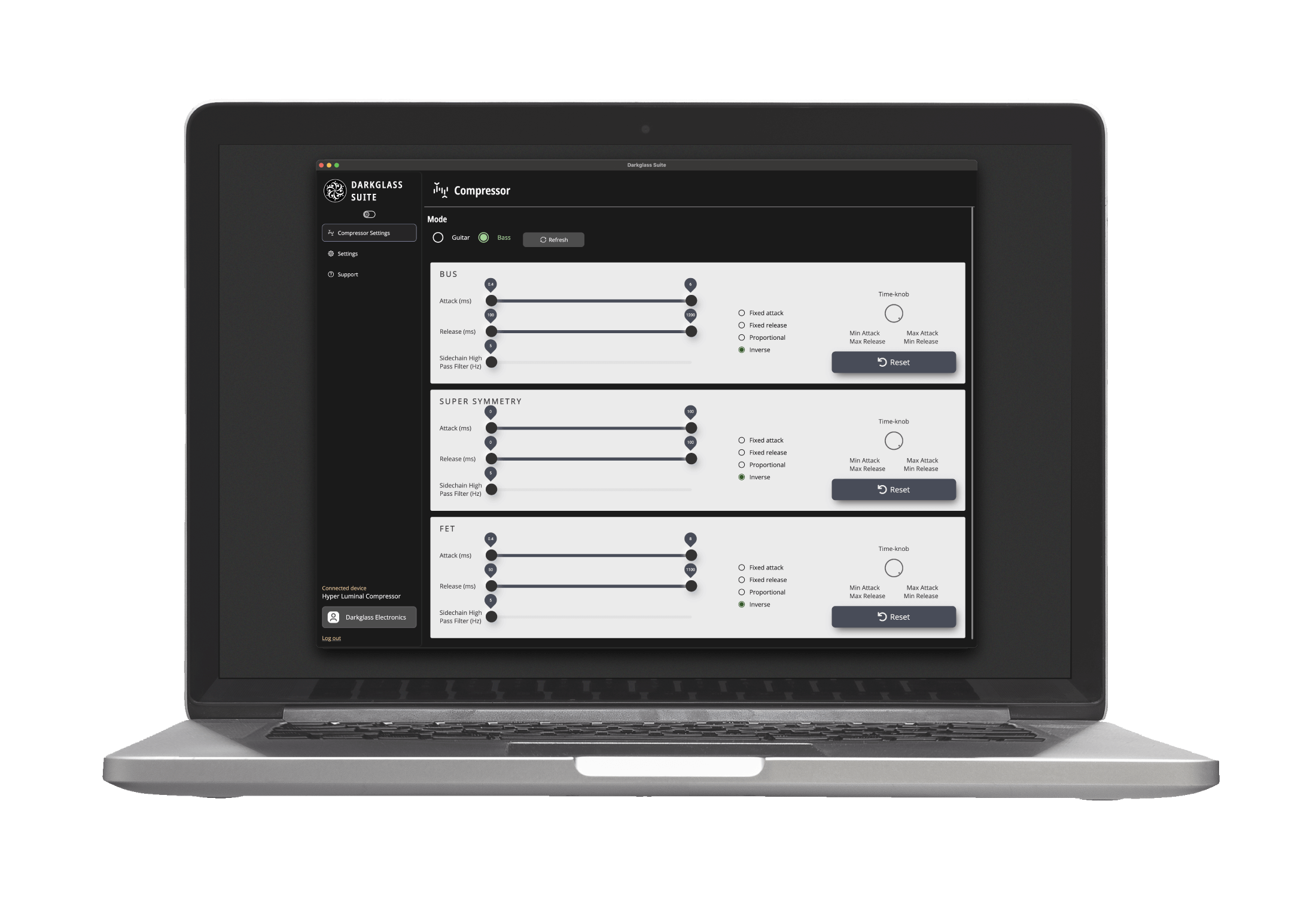
Hyper Luminal
By using the desktop version of the Darkglass Suite you can adjust the time and attack settings of each mode, the side chain parallel low pass filter, the mode of the release and attack settings and enable or disable the “guitar” mode.
Download Darkglass Suite Desktop
-

Windows 10 & 11 (24H2 or later)
Darkglass Suite latest version (6.11.4)
Supports Anagram v1.18.0 and the rest of our USB-compatible devices
GET THE APP FROM MICROSOFT STORE
or
DOWNLOADLegacy Darkglass Suite (1.3.6)
Supports ONLY Element v2.0 and below, Ultra series and classic 900 amplifiers line

Download Darkglass Suite Mobile
-

iOS App
Supports iOS 15.6 or later
-

Android App
Supports Android 11.0 or later
Anagram Software
-
KosmOS 1.19.1
KosmOS is the Operating System (OS) running inside the Anagram. It manages real-time audio processing, user interaction, and system control. Built on a modular Linux framework, it hosts effect blocks, neural models, and impulse responses with low latency and precise timing. It provides a unified structure for all Anagram functions (signal routing, control mapping, and content management) while remaining expandable through OS updates and DSP blocks.
To perform a manual firmware update or firmware re-flash without the requirement of the Suite software, please find the information below:
- Power on the unit
- Click the ⁝ button on the top-right corner of the screen
- Click the About button and then click the Manual Update
- Connect you unit to your computer using a USB-C cable
Wait for unit to appear as “mass storage device” - Copy the downloaded tar file to the “mass storage device” (do not extract contents, just copy as-is)
- Safely eject the “mass storage device” from your PC. If using macOS, unplug the USB-C cable (not the power cable!)
- Power on the unit
-
Changelog
[1.19.1]
- Fix NAM A2 input level handling regression
- Fix FX Loop and Return block Blend coloration / phase issue (NOTE: may impact sound of presets with FX Loop or Return block when Blend <100% or bypassed and combined with Merge)
[1.19.0]
New block: Hi-Five 103 Tube Amplifier
New block: Pheral 91 Phaser
New bass IRs: SWE Nordline 4x10
Improve controlling scenes with MIDI
New setting for choosing if the active scene bank can be changed by scene change MIDI messages- Setting: Device Settings > MIDI > MIDI Scene Change
- Option 1: Sets Bank & Scene (As it was before: scene change MIDI messages change the active scene bank)
- Option 2: Sets Scene (scene change MIDI messages don’t change the active scene bank, allowing MIDI controllers to activate specific scenes without affecting which scenes the Anagram foots activate)
- Next/Previous Scene MIDI messages now skip empty scenes, and wrap around when on the last/first scene
- The dynamic footbar now shows up in signal chain view whenever changing scenes over MIDI inside the active scene bank
Bug fixes & improvements
- NAM A2 optimizations
- Fix Stomp LED left on in Signal Chain screen after bound block removal
- Fix Signal Chain view returning to wrong position after visiting block settings
- Fix renaming user preset area after it has been reordered
- Improve controlling list-style parameters with MIDI CC
- Support plugin templates for marketplace plugins
- System optimizations
-
 Sold out
Anagram Multi-Effects Unit
Regular price $1,199.99 USDRegular price -
 Sold out
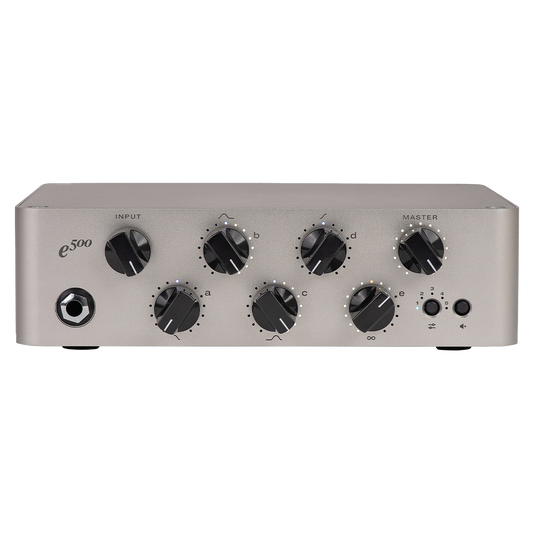
Exponent 500 Bass Amp Head
Regular price From $999.99 USDRegular price -
 Sold out
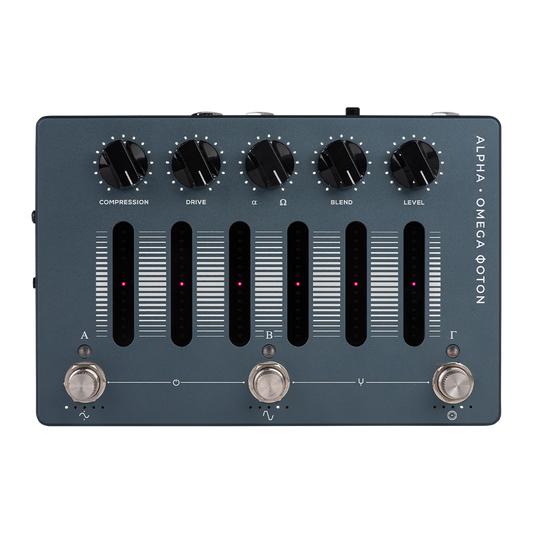
Alpha·Omega Φoton
Regular price $649.99 USDRegular price -
 Sold out
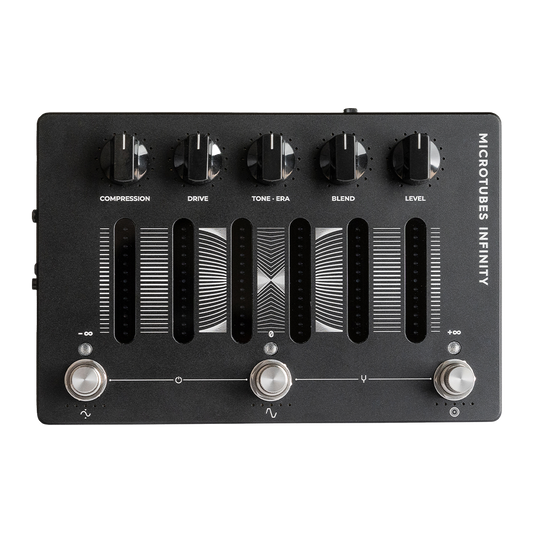
Microtubes Infinity
Regular price $649.99 USDRegular price -
 Sold out
Element Cabsim Headphone Amp
Regular price $199.99 USDRegular price -
 Sold out
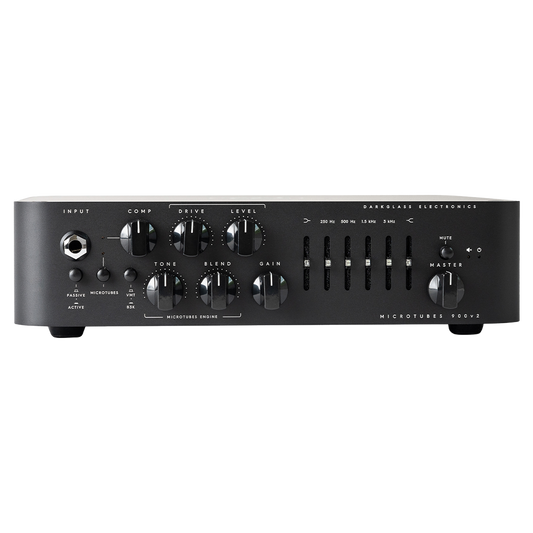
Microtubes 900v2 Black
Regular price $1,499.99 USDRegular price -
 Sold out
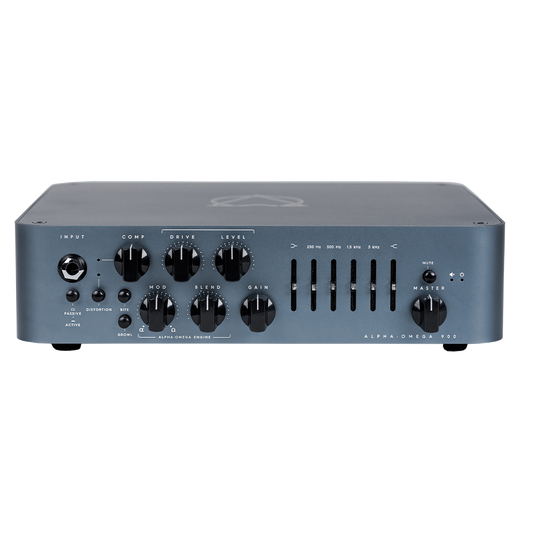
Alpha Omega 900 Bass Amplifier
Regular price $1,499.99 USDRegular price -
 Sold out
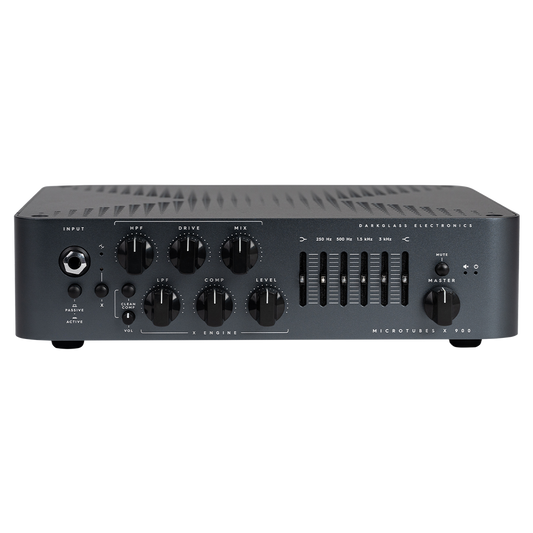
Microtubes X 900
Regular price $1,499.99 USDRegular price -
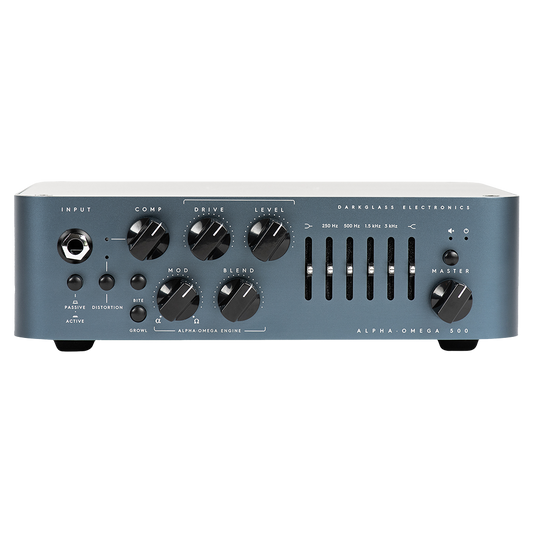 Sold out
Alpha-Omega 500 Bass Amplifier
Regular price $999.99 USDRegular price -
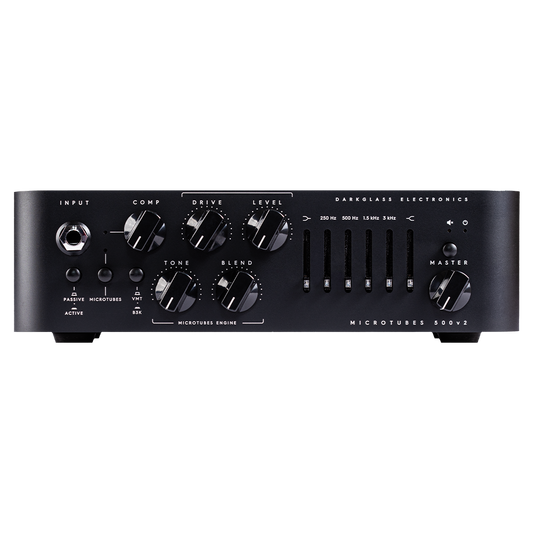 Sold out
Microtubes 500 V2 Iku-Turso
Regular price $869.99 USDRegular price -
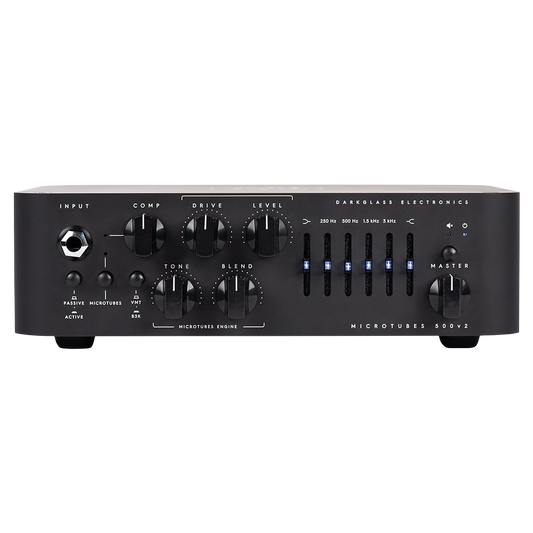 Sold out
Microtubes 500v2 Bass Amplifier
Regular price $999.99 USDRegular price -
Infinity 500 Combo 210
Regular price $1,479.99 USDRegular price -
Infinity 500 Combo 112
Regular price $1,329.99 USDRegular price -
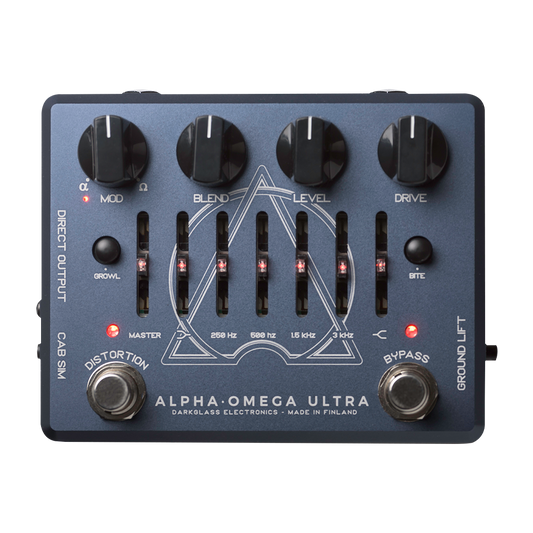 Sold out
Alpha·Omega Ultra with Aux In
Regular price $499.99 USDRegular price -
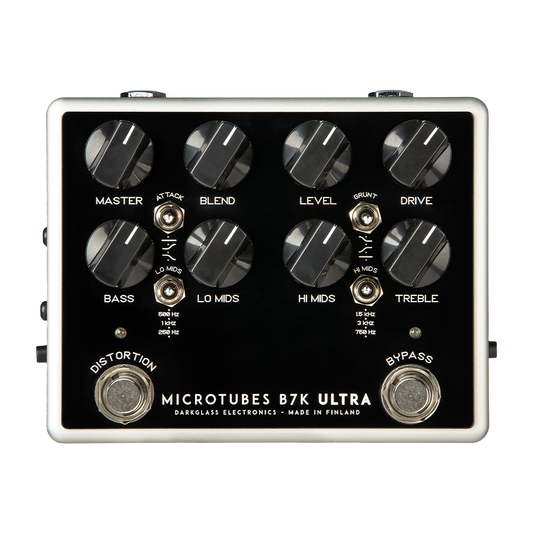 Sold out
Microtubes B7K Ultra with Aux In
Regular price $499.99 USDRegular price -
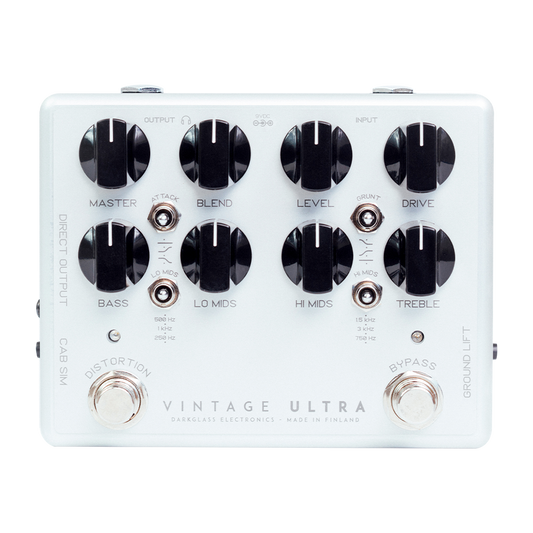 Sold out
Vintage Ultra with Aux In
Regular price $499.99 USDRegular price -
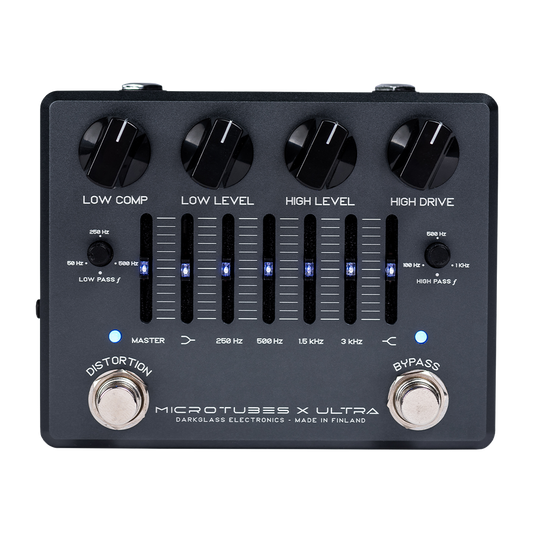 Sold out
Microtubes X Ultra
Regular price $499.99 USDRegular price -
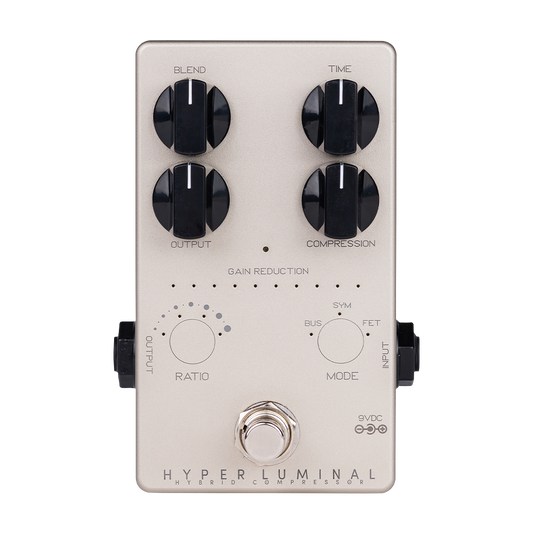 Sold out
Hyper Luminal Compressor
Regular price $349.99 USDRegular price -
 Sold out
MIDI Footswitch
Regular price $229.99 USDRegular price

In the interest of continuous improvement, specifications are subject to change without notice. If you have any questions, please don’t hesitate to contact us.